Android Studio vs. VS Code - Which IDE for Flutter
TLDR
Roughly summarized:
- If you’re lazy or a Mac user, use Android Studio.
- If you’re more of a tinkerer, use Visual Studio Code.
For more details, feel free to read on.
When it comes to developing Flutter apps, Android Studio and Visual Studio Code are two of the most popular development environments (IDEs). In this article, we’ll look at the pros and cons of each IDE and find out which is the best choice for developing Flutter apps.
Android Studio
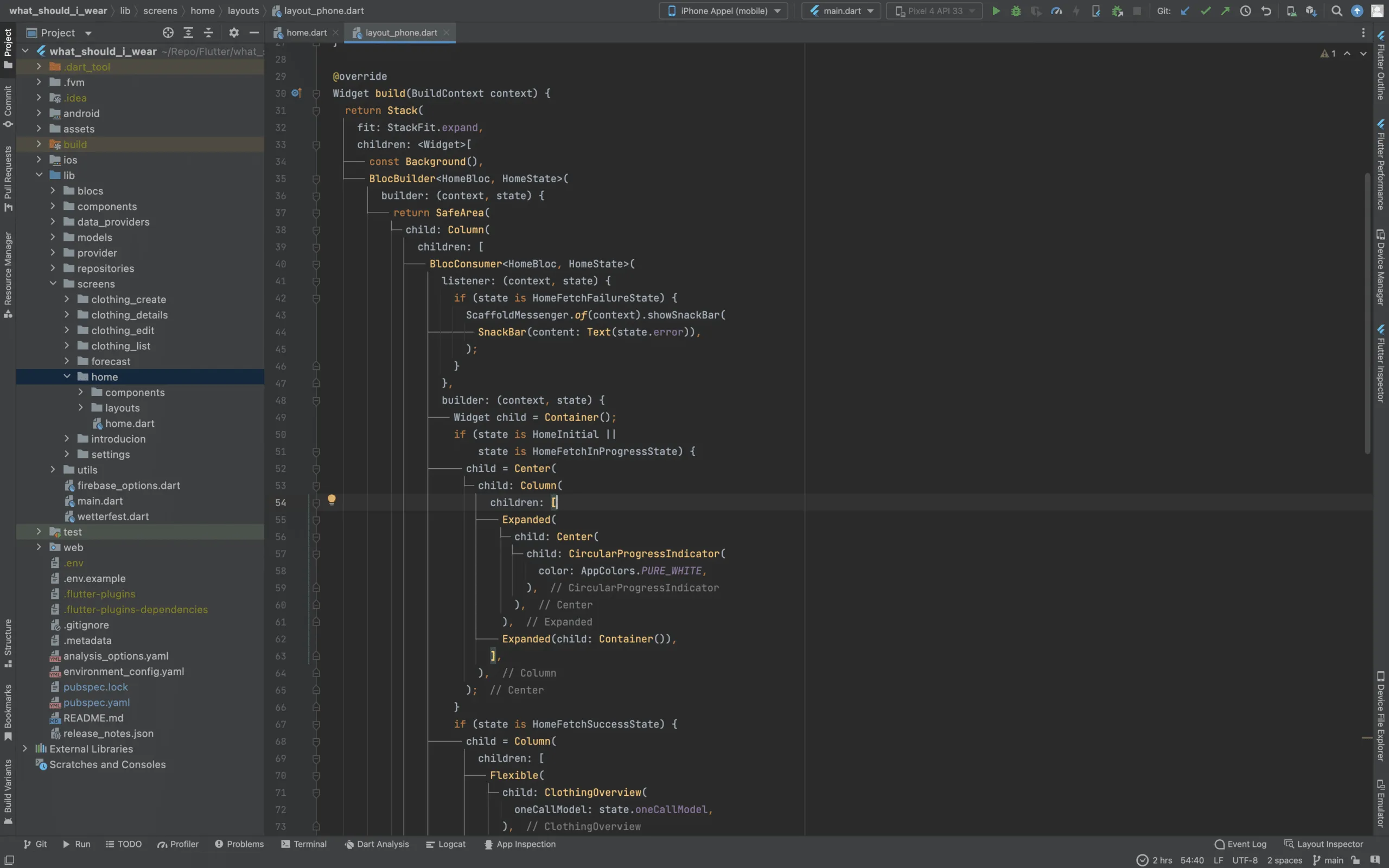
I program my apps with Android Studio, so I’m somewhat biased. But I’ll say this much. There’s a reason why Android Studio is used by many developers.
Android Studio is an official IDE from Google that was specifically developed for developing Android apps. It also offers excellent support for Flutter and is one of the most commonly used IDEs for Flutter developers. Android Studio offers features like code completion, debugger, and integration with Git that make developing Flutter apps easier.
Let’s look at some features of Android Studio that I’ve come to love over the years.
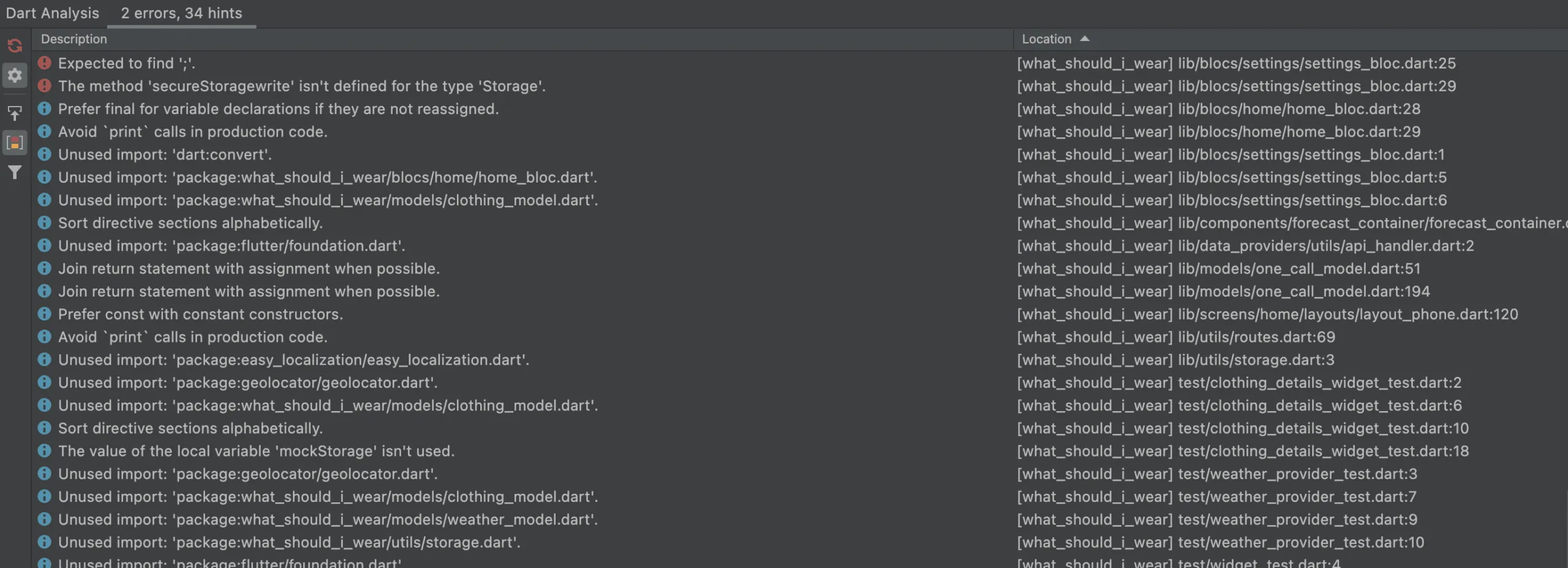
Dart Analyst:
Dart Analyst analyzes your Dart/Flutter source code. All inconsistencies and potential problems are displayed in the Dart Analysis window. Here you have the option to jump directly to the source code where the problem was detected.
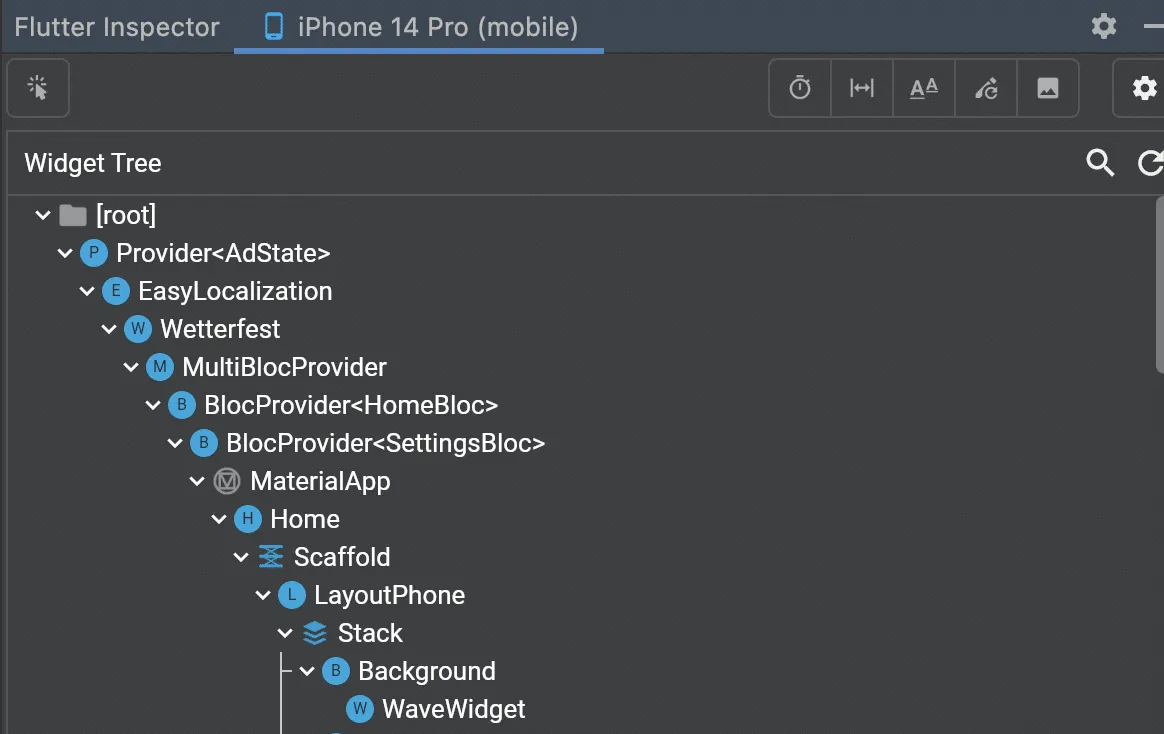
Flutter Inspector
If you need to fix layout problems or just want to know what your widget tree looks like, the Flutter Inspector is perfect for that.
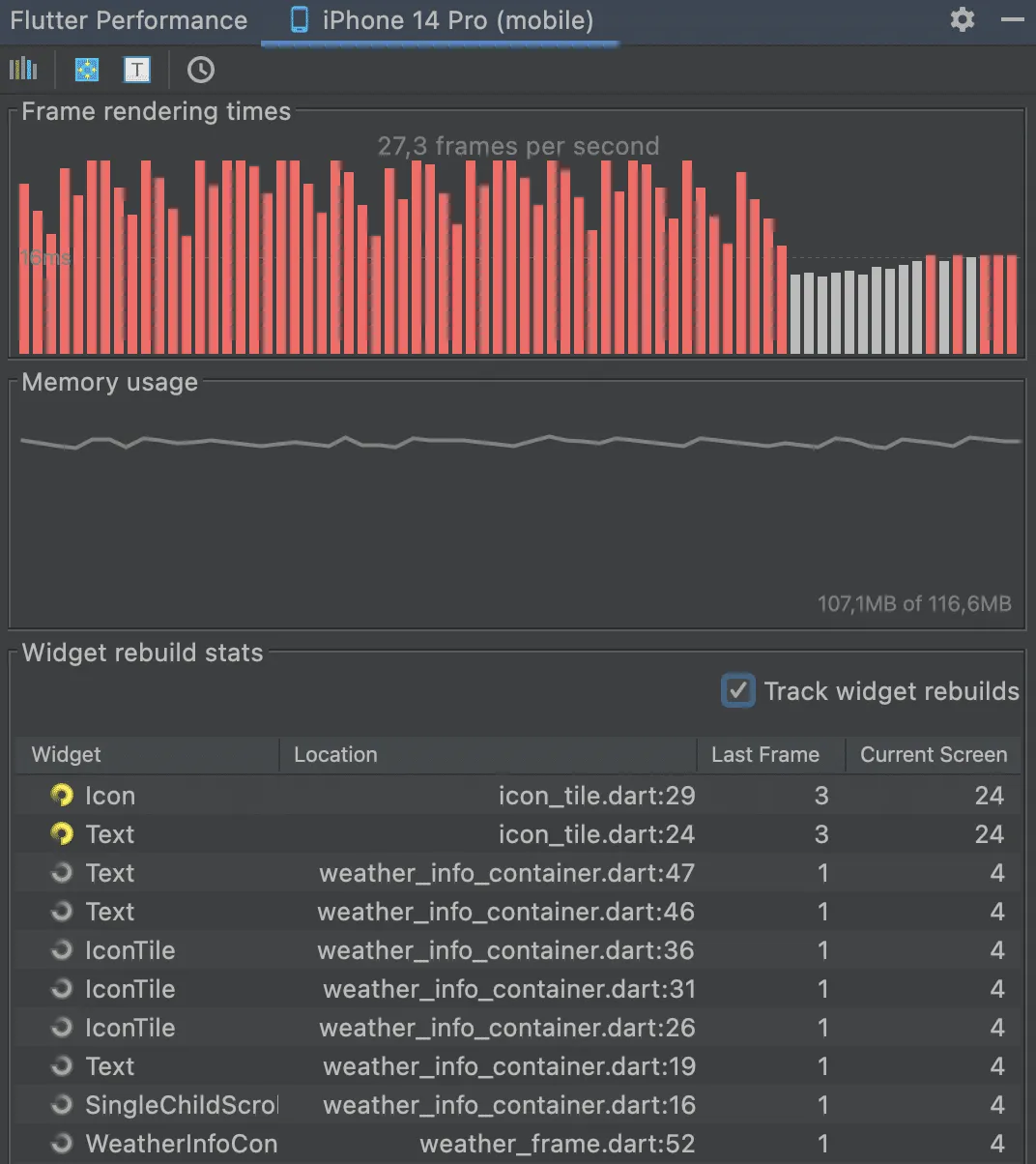
Flutter Performance
The ‘Flutter Performance’ tab gives you a good overview of your Flutter app’s performance. In addition to showing memory usage, there’s also a display of the frame rate (frames per second). Especially when the app contains many animations, you should keep an eye on this. Nevertheless, a red spike upward doesn’t necessarily mean a poorly performing app. Below you can see the display of my Wetterfest App. However, it has no performance problems in live operation. Trust me. So don’t panic right away.
These were just a few of the built-in features of Android Studio. The IDE offers much more, of course. There are probably still quite a few features that I don’t even know about yet.
But now let’s look at the advantages and disadvantages.
Advantages
- Flutter integration: Android Studio is the official development environment for Flutter. It offers seamless integration with the Flutter framework, making it easier to create and manage Flutter projects.
- Easy operation: Android Studio is geared towards developing Android apps and offers many pre-configured settings and tools that make developing with Flutter easier.
- Powerful tools: Android Studio offers powerful tools like the Flutter Widget Inspector, which allows you to inspect the various widgets in your Flutter app to diagnose and fix problems, and the debugger, which helps you quickly find and fix errors in your application.
- Good support: Android Studio has a large and active community that can help with troubleshooting and answering questions.
Disadvantages
Size: Android Studio is a large and complex development environment that requires a lot of storage space and resources on your computer.
Slow startup: Android Studio takes a lot of time to start and initialize, which can slow down the development process.
Steep learning curve: Due to its complexity, it can take a while to get familiar with Android Studio.
Visual Studio Code
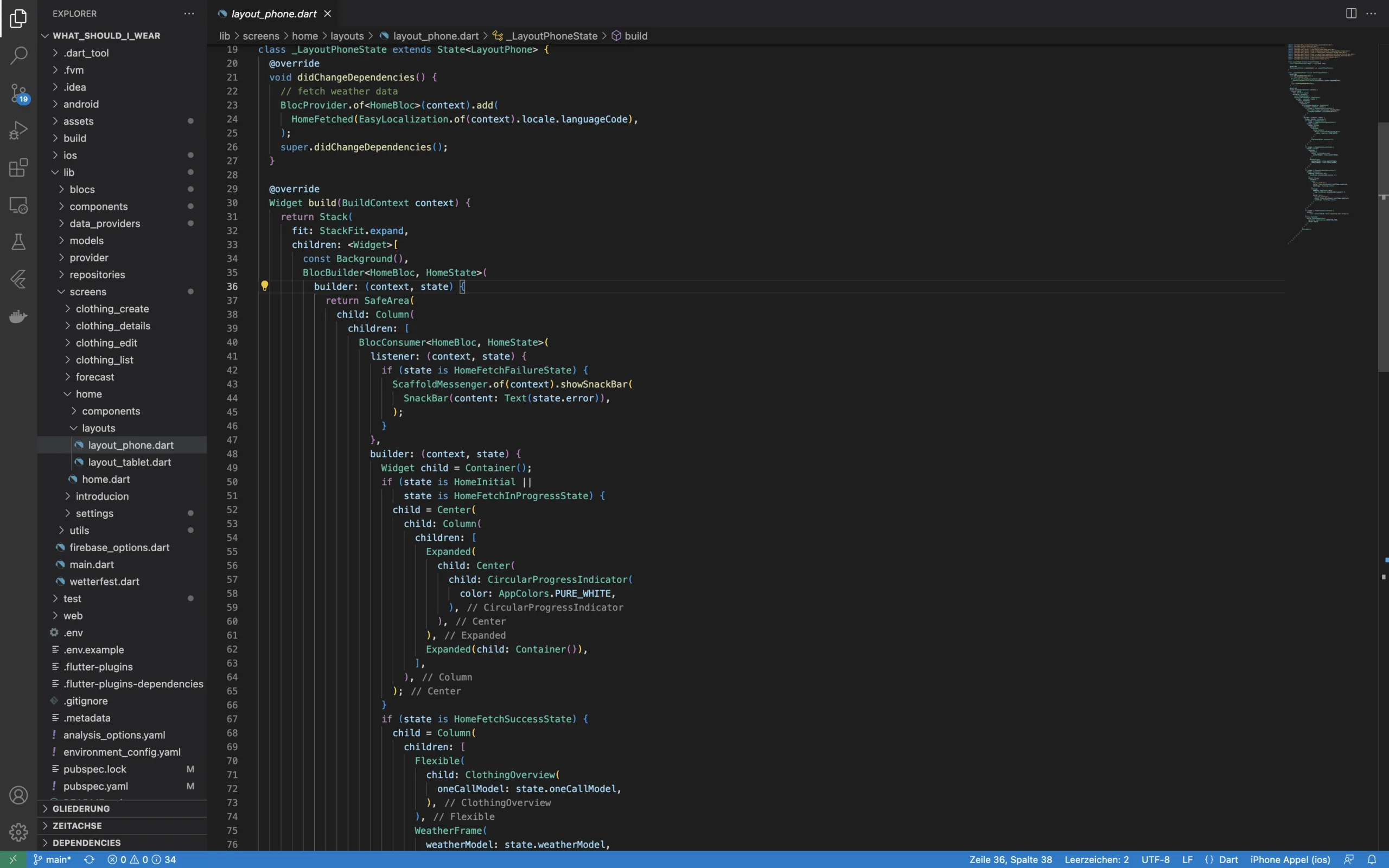
Visual Studio Code is a cross-platform, free, and open-source IDE developed by Microsoft. It’s very popular among Flutter developers due to its lightness and extensibility. Visual Studio Code offers a variety of extensions and plugins that allow you to customize your IDE to your specific needs. It also offers many features like debugger, Intellisense, and integration with Git.
One of the great strengths of Visual Studio Code is undoubtedly the numerous extensions. There are hardly any limits to the types of functionalities you can add with them. However, it’s important to be careful not to use too many extensions, as this can affect the IDE’s performance. Especially when setting up Visual Studio for multiple programming languages, this can quickly lead to a performance chaos.
Advantages
Lightweight: Visual Studio Code is a lightweight IDE and works quickly even on slower systems.
Extensibility: Visual Studio Code offers many extensions and plugins that allow you to customize your IDE to your specific needs.
Easy integration with other tools: Visual Studio Code offers easy integration with other tools like the terminal and Git.
Disadvantages
- No official support: Visual Studio Code is not an official IDE from Google and doesn’t offer official support for Flutter.
- Lack of integration with Android tools: Visual Studio Code doesn’t offer seamless integration with other Android tools like the Android Emulator and the Android SDK.
Which IDE for Flutter Is the Best Now?
Well, there isn’t really a best IDE, as the choice also depends on personal preferences and needs. I’ve found mine with Android Studio because it already offers so many tools and configurations that you can get started right away with app programming.
I’m somewhat biased and it might sound like I couldn’t be won over for Visual Studio Code, but the opposite is true. I have both IDEs installed and use both for different projects.
In summary, both Android Studio and Visual Studio Code are excellent IDEs for developing Flutter apps. Android Studio is Google’s official IDE and offers seamless integration with Android tools as well as official support for Flutter. It also offers many features like code completion, debugger, and integration with Git that make developing Flutter apps easier. However, Android Studio is a complex IDE and can work slowly on slower systems.
Which IDE do you use and which pros and cons are important to you? Feel free to write it in the comments.
Subscribe to Newsletter
Get updates on new blog posts, tutorials and tips about Flutter, Laravel and more.